
Introduction
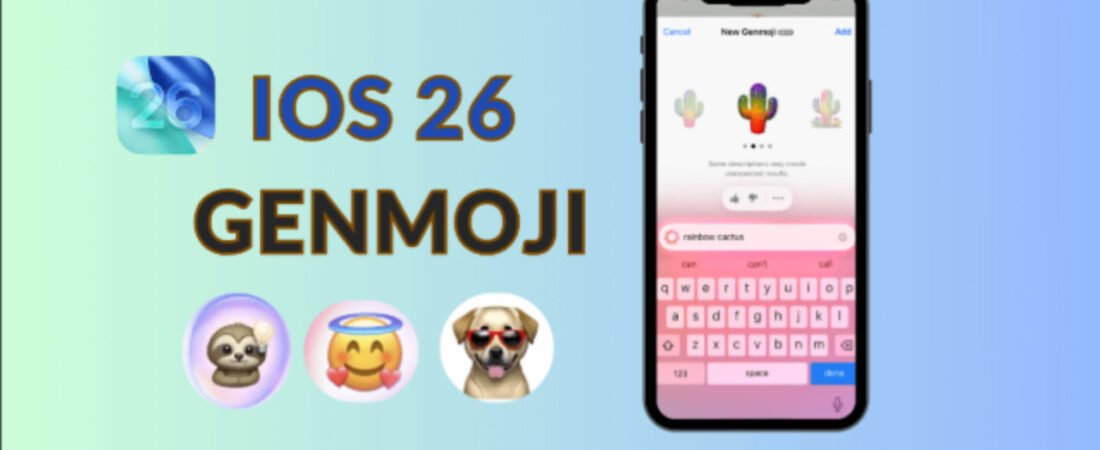
Apple’s iOS 26 has brought significant innovations to the iPhone experience, and one of the most exciting features is Genmoji—AI-powered custom emojis that let users express themselves in ways traditional emojis simply cannot. While Genmoji was initially introduced with Apple Intelligence, iOS 26 has expanded and refined this feature with improved customization options, emotional expressions, and physical attribute modifications.
However, if you own an older iPhone (such as iPhone 13, 14, or 12), you might be wondering: Can I use Genmoji on my device? The short answer is both yes and no—and this guide will explain exactly how.
In this comprehensive guide, we’ll explore native Genmoji functionality on compatible devices, provide detailed step-by-step instructions for newer models, and reveal practical workarounds for older iPhones that don’t have native Apple Intelligence support.
Understanding Genmoji: What They Are and Why They Matter
What Exactly Is a Genmoji?
Unlike standard Unicode emojis that are fixed characters used universally across all platforms, Genmoji are dynamically generated, personalized emoji-like stickers created using on-device artificial intelligence. They exist as unique images rather than traditional emoji characters, allowing infinite customization possibilities.
For instance, while standard emoji collections offer a limited set of expressions, Genmoji lets you create custom variations like:
- An astronaut doing the moonwalk
- A specific person wearing sunglasses on a beach
- A dog playing bagpipes
- Custom emotional expressions based on your exact description
Key Advantages of Genmoji Over Standard Emojis
| Feature | Standard Emojis | Genmoji |
|---|---|---|
| Customization Level | Fixed and universal | Unlimited personalization |
| Update Frequency | Annual Unicode updates only | Created on-demand |
| Personal Representation | Limited options | Based on your photos and descriptions |
| Emotional Accuracy | Generic expressions | Custom expressions (happy, tired, surprised, etc.) |
| Compatibility | Works everywhere | Appears as images on older devices/Android |
| Privacy | Cloud-based processing | 100% on-device processing |
How Genmoji Uses On-Device AI
Apple processes all Genmoji generation directly on your iPhone using on-device AI technology. This means your prompts and personal data never leave your device—a significant privacy advantage. The feature is currently marked as beta in iOS 26, which means Apple continues refining the quality and accuracy of generated images.
iOS 26 Genmoji Compatibility: Which iPhones Support It?
Native Genmoji Support (Full Apple Intelligence Features)
Only these iPhone models can natively create Genmoji with iOS 26:
- iPhone 17, 17 Pro, 17 Pro Max
- iPhone 16, 16 Plus, 16 Pro, 16 Pro Max
- iPhone 15 Pro, 15 Pro Max
Native Genmoji support requires the Apple Intelligence framework, which demands significant processing power available only on devices with the A17 Pro chip or newer.
iOS 26 Compatibility (But Limited Genmoji Features)
These devices can run iOS 26 but cannot natively create Genmoji due to hardware limitations:
- iPhone 15, 15 Plus
- iPhone 14, 14 Plus, 14 Pro, 14 Pro Max
- iPhone 13, 13 mini, 13 Pro, 13 Pro Max
- iPhone 12, 12 mini, 12 Pro, 12 Pro Max
- iPhone 11, 11 Pro, 11 Pro Max
- iPhone SE (2nd generation and later)
Devices Dropped from iOS 26 Support
The following models cannot update to iOS 26 and should consider third-party alternatives for Genmoji functionality:
- iPhone XS, XS Max, XR

iPhone Genmoji and iOS 26 Compatibility Matrix
Part 1: How to Use Native Genmoji on iPhone 15 Pro, iPhone 16, and iPhone 17
Step 1: Verify Your Device Meets All Requirements
Before attempting to create Genmoji, confirm your device has:
- Compatible Hardware: iPhone 15 Pro/Max, iPhone 16 series, or iPhone 17 series
- Latest iOS Version: iOS 18.2 or later (iOS 26 recommended)
- Sufficient Storage: At least 2-3 GB of available storage
- Apple Intelligence Enabled: Activated in Settings
- Correct Language Settings: Siri and iPhone must be set to the same language
To check your iOS version:
- Open Settings app
- Tap General → About
- Look for iOS version number (should display iOS 26.x or iOS 18.2+)
Step 2: Enable Apple Intelligence
Apple Intelligence must be enabled for Genmoji to function. Here’s how:
- Open the Settings app
- Tap Apple Intelligence & Siri
- Toggle on Apple Intelligence
- Ensure your language matches your Siri language setting
- Tap Set Up and follow the on-screen prompts
- Wait for the AI models to download (requires internet connection and charging)
- You’ll receive a notification when setup is complete
Step 3: Enable Sticker Emoji Keyboard (Critical Step)
This step is frequently overlooked but essential for Genmoji to appear:
- Open Settings
- Navigate to General → Keyboard
- Scroll to the bottom and find Stickers
- Toggle on Sticker Emoji Keyboard
Step 4: Open Messages and Access the Emoji Keyboard
- Open the Messages app or any other compatible app (Notes, Mail, WhatsApp, social media)
- Tap the text field
- Tap the Emoji icon (smiley face) in the keyboard
- The emoji keyboard will appear
Step 5: Tap the Genmoji Option
At the top-right corner of the emoji keyboard, you’ll see a small icon. Look for:
- A colorful smiley face icon labeled “Genmoji”
- Tap this to enter Genmoji creation mode
Step 6: Create Your Genmoji Using Multiple Methods
iOS 26 offers several ways to create Genmoji. Choose the method that suits your vision:
Method A: Using Text Descriptions
- Tap the text input field that says “Describe a Genmoji”
- Type your creative description (Examples: “astronaut juggling fruit,” “happy corgi wearing a crown,” “person meditating in a forest”)
- Tap the Create button (or checkmark icon)
- Wait 2-5 seconds for AI to generate variations
- Review the generated options
Method B: Mixing Emojis and Descriptions
- Tap emoji suggestions below the input field
- Select up to 7 different emoji or concepts
- Optionally add a text description to refine the result
- Tap Create
- Wait for generation
Method C: Creating Genmoji of People from Your Photos
- Tap the person icon (usually shown as a photo frame icon)
- Select “Choose from Photos”
- Browse your photo library and select a person’s photo
- For best results, choose clear, well-lit photos showing the person’s face
- Optional: Add descriptive context like “hiking on a mountain” or “dancing at a party”
- Tap Create
Pro Tip: iOS 26 allows you to customize how the person appears by:
- Changing hairstyle options
- Adjusting facial hair style
- Adding or changing eyewear
- Setting custom emotional expressions (happy, tired, surprised, etc.)
Step 7: Review and Refine Generated Options
Once generation completes, you’ll see your first Genmoji variation:
- Swipe left or right to browse through 4-6 different versions generated by the AI
- Each swipe shows a new interpretation of your description
- If none satisfy you, tap refresh/regenerate to create new variations
Step 8: Customize Appearance (For Person-Based Genmoji)
For Genmoji based on people:
- Tap the edit icon (pencil symbol)
- Choose “Customize Appearance” to access:
- Hairstyle options (straight, curly, buzz cut, etc.)
- Facial hair styles (beard, goatee, clean shaven, etc.)
- Eyewear selection (glasses, sunglasses, no glasses, etc.)
- Custom expressions (happy, sad, sleepy, surprised, etc.)
- Additional details field for refinements
- Make your selections
- Tap Done to apply changes
Step 9: Add Your Genmoji to Your Message
Once you’re satisfied with your creation:
- Tap the checkmark or “Add” button
- The Genmoji will be inserted directly into your message
- Review the placement and context
- Tap Send to share
Step 10: Managing and Reusing Your Genmoji
Created Genmoji are automatically saved and easily accessible:
- Future Access: Every Genmoji you create is saved in your sticker collection
- Reusing Genmoji: Open the emoji keyboard → tap Genmoji section → find your creation
- Deleting Genmoji: Long-press a saved Genmoji → tap Delete
- Using as Tapback: Long-press a message in Messages → select your Genmoji to react
Part 2: Genmoji on Older iPhones – Your Complete Alternative Guide
If you’re using an iPhone 13, 14, 12, or 11, native Genmoji creation isn’t available due to hardware limitations. However, multiple practical workarounds exist.
Option 1: Genmoji Hub App (Recommended)
Genmoji Hub is the most direct third-party solution for older iPhones.
Installation Steps:
- Open the App Store
- Search for “Genmoji Hub” (or “Emoji Hub”)
- Tap Get → authenticate with Face ID/Touch ID
- Wait for installation to complete
Using Genmoji Hub:
- Launch the Genmoji Hub app
- Browse available emoji packs and AI-generated emoji collections
- Select the emoji packs you want
- Tap Save to Photos to download them
- The emoji packs will be saved to your Photos app
Converting to Stickers and Keyboard Access:
- Open Photos app
- Navigate to your saved emoji packs
- Long-press the emoji image
- Tap Create Sticker or Add to Stickers
- Use these stickers in Messages and other apps
- They’ll appear in your sticker keyboard for easy access
Advantages:
- No subscription required
- Simple interface
- Works on older iPhone models
- Large collection of pre-made emoji packs
Limitations:
- Pre-created packs rather than AI-generated on-demand
- Limited customization compared to native Genmoji
- You cannot describe custom emoji in real-time
Option 2: Microsoft Copilot App
Microsoft Copilot provides AI-generated image and emoji creation capabilities.
Installation:
- Open App Store
- Search “Microsoft Copilot”
- Tap Get and install
Creating Emoji with Copilot:
- Open Copilot app
- Select Image creation or Design feature
- Describe the emoji you want (e.g., “cute cat astronaut emoji style”)
- Copilot generates images based on your prompt
- Save the generated image
- Convert to sticker (see steps above)
Advantages:
- Advanced AI with detailed customization
- Real-time generation based on descriptions
- More sophisticated image quality
Limitations:
- Requires Microsoft account
- May include Copilot branding
- Slightly more complex interface
- Requires internet connection for each creation
Option 3: Image Playground (If iOS 26 Compatible)
On some iOS 26 compatible older models, you may have limited access to Image Playground, Apple’s image creation tool.
Using Image Playground for Emoji:
- Open Image Playground app (if available)
- Select Emoji or Sketch category
- Describe or upload a sketch
- Tap Create
- Save the result
- Convert to sticker for keyboard access
Part 3: Advanced Genmoji Features in iOS 26
Creating Complex Multi-Element Genmoji
iOS 26 lets you combine up to 7 different elements in a single Genmoji:
- Start with a base concept (e.g., “person”)
- Add activities (e.g., “surfing”)
- Add settings (e.g., “on a beach”)
- Add accessories (e.g., “wearing sunglasses”)
- Add emotional context (e.g., “smiling”)
- Add physical attributes (e.g., “blonde hair”)
- Add additional details (e.g., “sunset lighting”)
Example prompt: “A smiling person with curly brown hair surfing on a surfboard at a beautiful beach during sunset, wearing stylish sunglasses”
Integrating ChatGPT for Enhanced Styling
iOS 26 introduces ChatGPT integration for image and emoji styling:
- Create your base Genmoji
- Tap “Style with ChatGPT” (if available in Image Playground)
- Choose an artistic style:
- Oil painting
- Watercolor
- Pixel art
- Cyberpunk
- Vintage photograph
- 3D render
- ChatGPT reimagines your Genmoji in that style
- Save and use the styled version
Using Genmoji in Image Playground
Genmoji seamlessly integrates with Image Playground, Apple’s creative suite:
- Open Image Playground app
- Select Create → Emoji category
- Use any of the methods above (text, sketches, concepts)
- Save directly to Photos
- Share or convert to stickers
Cross-Platform Sharing
Important: Genmoji are shared as regular images, so:
- iOS/iPadOS 18.2+: Display as inline emoji characters
- macOS Sequoia 15.1+: Display as inline emoji characters
- Older Apple devices & Android: Display as regular image files
- All platforms: Can still view and appreciate the custom emoji
Troubleshooting Common Genmoji Issues
Issue 1: Genmoji Option Not Appearing
Solution:
- Verify Apple Intelligence is enabled (Settings → Apple Intelligence & Siri)
- Ensure Sticker Emoji Keyboard is toggled on (Settings → General → Keyboard → Stickers)
- Restart the Messages app
- Restart your iPhone if issue persists
Issue 2: “Image Creation Not Available” Error
Solution:
- Ensure device is connected to Wi-Fi
- Device must be charging or plugged in
- Check that you have at least 2 GB storage available
- Try again after 5-10 minutes (software download may be in progress)
Issue 3: Generated Images Have Poor Quality
Solution:
- Remember that Genmoji is still in beta—quality varies
- Try a more specific, detailed description
- Regenerate by swiping through options
- Avoid overly complex or contradictory descriptions
Issue 4: Genmoji Not Sending Correctly
Solution:
- Verify recipient device is running iOS 18.1 or later
- On older recipient devices, Genmoji will appear as image files (normal behavior)
- Check internet connection
- Try resending via different app if Messages fails
Issue 5: Can’t Find Previously Created Genmoji
Solution:
- Open Messages
- Open emoji keyboard
- Swipe right to see “Stickers” tab
- Scroll through your saved Genmoji collection
- If still missing, check Photos app → Recently Deleted folder
Best Practices for Creating Excellent Genmoji
Writing Effective Descriptions
DO:
- Be specific and detailed: “A golden retriever wearing a pilot hat flying a small airplane”
- Include context: “Person meditating on a mountaintop at sunrise”
- Specify emotions: “Laughing, joyful expression on the person’s face”
- Mention style preferences: “Watercolor art style” or “cartoon illustration”
DON’T:
- Use vague descriptions: “Happy” or “Cool emoji”
- Combine contradictions: “Sad but celebrating” (conflicting emotions)
- Request copyrighted characters: “Spider-Man emoji” may not generate expected results
- Expect photorealism: Genmoji excel at stylized, emoji-like art
Optimizing Photo Selection for Person-Based Genmoji
- Use clear, well-lit photos with the person’s face clearly visible
- Avoid photos with multiple people—the AI may struggle to identify the target
- Choose recent photos for accurate representation
- Ensure good contrast between the face and background
- Avoid heavily filtered or edited photos that misrepresent actual appearance
Saving Time with Frequently Used Genmoji
- Create your most-used Genmoji once
- They’re automatically saved to your sticker collection
- Quick access from any text field
- Use Tapback reactions in Messages with your custom Genmoji
- Share Genmoji packs with friends (available on newer iOS versions)
Genmoji Use Cases: Creative Applications
Personal Communication
- Create a custom emoji representing yourself
- Generate family member emojis based on photos
- Make pet-based Genmoji for sharing with friends
Business and Professional Use
- Design branded emoji for company internal communications
- Create professional character representations for team channels
- Generate mood indicators for status updates
Content Creation
- Illustrate blog posts with custom emoji
- Create unique reactions for social media engagement
- Design personal branding elements for creator accounts
Entertainment and Social Media
- Generate trending Genmoji for TikTok, Instagram, or Twitter
- Create funny reaction packs to share with followers
- Design custom emoji for Discord or Slack communities
Frequently Asked Questions (FAQ)
Q1: Can I use Genmoji on my iPhone 13?
A: Not natively with Apple Intelligence. However, you can use third-party apps like Genmoji Hub or Microsoft Copilot to create AI-generated emoji packs that function similarly. See Part 2 of this guide for detailed instructions.
Q2: Do I need an active internet connection to create Genmoji?
A: Yes, for initial setup and downloading AI models. However, the actual Genmoji generation happens entirely on your device without sending data to Apple’s servers—ensuring privacy.
Q3: Will my created Genmoji work on Android phones?
A: Yes, but they’ll appear as image files rather than inline emoji characters. Recipients on Android can still view and appreciate your custom emoji.
Q4: How much storage do Genmoji use?
A: Individual Genmoji are small image files (typically 50-200 KB each). Even creating hundreds of Genmoji will use minimal storage.
Q5: Can I edit a Genmoji after creating it?
A: You can regenerate variations or create a new version with refined descriptions. The original saved Genmoji cannot be edited, but you can delete and recreate it.
Q6: Is Genmoji free to use?
A: Yes, completely free. Apple Intelligence and Genmoji are included with iOS 18.2+ at no additional cost (hardware dependent).
Q7: What happens to Genmoji I create—are they stored in the cloud?
A: Your created Genmoji are saved locally on your device in the sticker section. They sync through iCloud if you have iCloud Keychain enabled, but the generation process itself is entirely on-device.
Q8: Can I create Genmoji of real celebrities?
A: You can create emoji-style interpretations based on descriptions, but results may vary. Highly stylized emoji format means celebrity likenesses may not be perfectly recognizable.
Q9: Are there content restrictions for Genmoji?
A: Yes, similar to Image Playground, Apple maintains content guidelines. The AI will decline to generate offensive, violent, or inappropriate content.
Q10: Will older iPhone models like iPhone 11 ever support native Genmoji?
A: Unlikely. Native Genmoji requires the processing power of A17 Pro chips or newer. iPhone 11 has an A13 chip. However, third-party alternatives will continue improving.
Conclusion
Genmoji in iOS 26 represents a significant leap in personal expression and digital communication. Whether you’re using a cutting-edge iPhone 17 with native Apple Intelligence or an older iPhone 12 relying on third-party alternatives, you now have practical ways to create and use custom emoji.
Key Takeaways:
- Native Support: iPhone 15 Pro, iPhone 16, and iPhone 17 series offer full Genmoji creation with Apple Intelligence
- Workarounds Available: Older iPhones can access similar functionality through Genmoji Hub, Microsoft Copilot, and other apps
- Privacy First: On-device AI processing means your creative prompts never leave your iPhone
- Easy Sharing: Genmoji work across iOS, macOS, and even appear as images on Android devices
- Constantly Improving: iOS 26 brings enhanced customization, emotional expressions, and physical attributes to Genmoji
Whether you’re creating professional branded emoji, sharing personalized character representations with family, or simply having fun with creative expression, Genmoji offer unprecedented flexibility that traditional emoji simply cannot match.
Start creating your first Genmoji today, and discover how this AI-powered feature can enhance your digital communication in ways you haven’t imagined.
About the author–
Javed Ahmad is an Information Technology Specialist at Accenture with a postgraduate degree in IT and over 5 years of enterprise-level experience. He specializes in creating hands-on guides for B2B platforms, software tools, and FinTech, helping users solve complex technical problems with professional-grade accuracy. LinkedIn.