
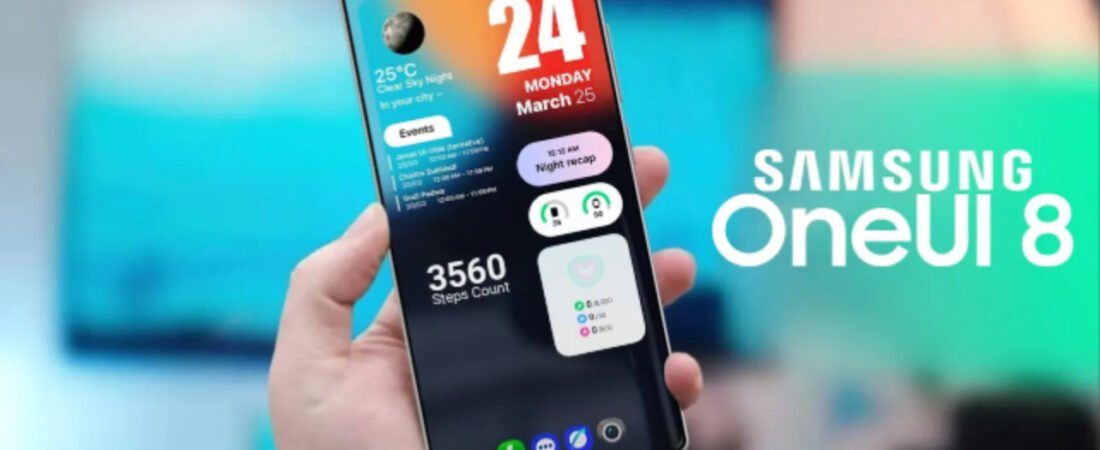
Experiencing frustrating delays with your Samsung Galaxy’s lock screen widgets after updating to One UI 8? You’re not alone. This comprehensive guide walks you through proven solutions to eliminate lag and restore smooth performance.
Samsung’s One UI 8, built on Android 16, introduced several aesthetic enhancements to the lock screen experience, including the much-touted Adaptive Clock feature that dynamically adjusts to your wallpaper. However, many users—including Galaxy S25, Z Fold 7, and Z Flip 7 owners—have reported noticeable delays, lag, and unresponsiveness with lock screen widgets since upgrading.
Whether you’re dealing with slow widget refreshes, the Adaptive Clock failing to wrap around subjects, or general stutter when interacting with lock screen elements, this guide provides actionable solutions based on official Samsung recommendations and community-tested fixes.
Understanding the Root Causes
Before diving into fixes, it’s important to understand what’s causing these delays. Based on Samsung’s official communications and user reports, the primary culprits include:
| Issue | Cause | Affected Devices |
|---|---|---|
| Adaptive Clock not positioning correctly | Outdated LockStar Good Lock module (below v7.0.1.10) | Galaxy S25 series, Z Fold 7, Z Flip 7 |
| General lock screen lag | Background optimization processes post-update | All One UI 8 devices |
| Widget refresh delays | Customization Service running in background | Mid-range A-series devices |
| Quick panel stutter | Visual effects (transparency/blur) overload | Galaxy Watch 6, older flagships |
Samsung has officially confirmed that the Adaptive Clock malfunction specifically stems from outdated LockStar applications, while broader performance issues often relate to background services and visual processing demands.
Solution 1: Update the LockStar Good Lock Module (For Adaptive Clock Issues)
The most critical fix for Adaptive Clock delays and positioning failures is ensuring your LockStar module is updated to version 7.0.1.10 or higher. Samsung explicitly states that outdated versions cause the clock to fail detecting wallpaper subjects properly.
Step-by-Step Update Process:
- Open the Galaxy Store on your Samsung device
- Tap the hamburger menu (three horizontal lines) in the top-right corner
- Select “Updates” to view available app updates
- Locate “LockStar” in the list—if you don’t see it, ensure Good Lock is installed first
- Tap the update icon next to LockStar and follow installation prompts
- Restart your device to ensure changes take effect
If LockStar isn’t installed, download Good Lock from the Galaxy Store first, then install the LockStar module within the app.
Verification: After updating, open any photo with a clear human or pet subject as your wallpaper. The clock should now automatically detect edges and wrap around subjects without overlapping.
Solution 2: Disable Customization Service Background Activity
For general lock screen lag and widget delay issues—particularly on Galaxy A-series devices—disabling the Customization Service has proven effective according to community reports.
How to Disable:
- Navigate to Settings > Modes and Routines
- Tap the three-dot menu in the top-right corner
- Select “Customization service”
- Toggle it OFF
This service runs continuously in the background to learn your usage patterns, but on One UI 8, it appears to consume excessive resources during the initial post-update period, causing system-wide lag including lock screen widget delays.
Solution 3: Clear System Cache Partition
Post-update cache conflicts are a common cause of widget refresh delays. Clearing the system cache removes outdated temporary files without affecting your personal data.
For Galaxy Phones:
- Power off your device completely
- Press and hold the Volume Up button and Power button simultaneously
- Release buttons when the Samsung logo appears and you see the Android recovery menu
- Use Volume Down to navigate to “Wipe cache partition”
- Press Power button to select
- Confirm with “Yes” using Power button
- Select “Reboot system now” when complete
For Galaxy Watch Users (if experiencing watch widget delays):
- Power off the watch
- Press and hold both Home and Back keys until “Rebooting” appears
- Press Home key repeatedly to enter Reboot Mode menu
- Navigate to “Recovery” using Home button, then long-press to select
- Select “Wipe cache partition” and confirm
- Reboot system
According to FindArticles, this process resolves stuttering for many Galaxy Watch 6 users experiencing lag after the One UI 8 Watch update.
Solution 4: Adjust Visual Effects Settings
One UI 8’s enhanced transparency and blur effects, while visually appealing, can overwhelm the GPU—particularly on older devices or during the post-update optimization phase.
Reduce Transparency and Blur:
- Go to Settings > Accessibility > Vision enhancements
- Enable “Reduce transparency and blur”
- Optional: In the same menu, enable “Reduce animations” for additional performance gains
This adjustment significantly reduces the computational load on the display compositor, resulting in snappier widget interactions and reduced input lag, as noted in performance testing.
Solution 5: The Decorative Frame Workaround (Adaptive Clock Specific)
If updating LockStar doesn’t immediately resolve Adaptive Clock positioning issues, a clever community-discovered workaround forces the feature to activate:
- Open Lock Screen editor (Settings > Lock screen > Edit)
- Select your wallpaper and apply one of Samsung’s decorative frames around the person or pet
- The Adaptive Clock should immediately activate and wrap around the framed subject
- Return to the editor and remove the frame (keep the same wallpaper)
- The Adaptive Clock effect persists even without the frame
This trick works because the frame helps the AI detection algorithm identify the subject boundary, “training” it to recognize the shape even after frame removal.
Solution 6: Optimize Lock Screen Notification Display
While not strictly a “delay” fix, changing your notification display format from the default “Icons” to “Cards” improves perceived responsiveness and information accessibility, as recommended by Pocket-lint.
Change Notification Format:
- Navigate to Settings > Notifications > Lock screen
- Change from “Icons” (default) to “Cards”
- Exit settings—changes apply immediately
Cards display larger, more detailed notifications under the clock rather than tiny icons in the corner, making the lock screen feel more responsive and informative.
Solution 7: Post-Update Patience and Optimization
Samsung devices perform extensive background optimization after major updates, including app reindexing, cache rebuilding, and AI model updates. This process can temporarily slow widget performance.
Best Practices:
- Keep your device charging with Wi-Fi connected for 30-60 minutes after updating
- Avoid force-closing apps during the first 24-48 hours
- Let the system settle before evaluating performance
- Check for additional updates—Samsung has released multiple beta patches addressing lock screen issues
According to SammyFans, Samsung’s One UI 8.5 Beta 4 specifically addresses “a major lock screen problem” where the clock would scroll oddly, indicating ongoing refinement of these features.
Troubleshooting Summary Table
| Symptom | Primary Fix | Secondary Fix |
|---|---|---|
| Adaptive Clock not wrapping around subjects | Update LockStar to v7.0.1.10+ | Use decorative frame workaround |
| General lock screen lag/stutter | Disable Customization Service | Clear cache partition |
| Widgets slow to refresh | Reduce transparency/blur effects | Wait for background optimization |
| Quick panel delay | Remove camera/flashlight lock screen widgets | Update to latest One UI 8 patch |
| Watch widget delays | Clear Watch cache partition | Reduce transparency settings |
When to Contact Samsung Support
If you’ve implemented all above solutions and still experience significant delays after 48-72 hours:
- Back up your data using Samsung Cloud or Smart Switch
- Perform a factory reset (Settings > General management > Reset > Factory data reset)
- Restore data selectively—avoid restoring potentially corrupted cache data
- Contact Samsung Support through the Members app or official support channels if issues persist on a clean install
Persistent lag on a fresh installation may indicate a hardware-specific software bug requiring diagnostic logs that only Samsung engineers can analyze.
Preventing Future Lock Screen Widget Issues
To maintain optimal lock screen performance going forward:
- Keep Good Lock modules updated through Galaxy Store
- Monitor Galaxy Store for LockStar updates when One UI updates release
- Use static wallpapers rather than live wallpapers for better widget stability
- Limit lock screen widgets to essential items—excessive widgets increase refresh overhead
- Enable automatic system optimization in Device care settings
Conclusion
One UI 8’s lock screen enhancements represent Samsung’s continued push toward AI-driven personalization, but these features require updated supporting apps and sufficient system resources to function smoothly. By updating LockStar, managing background services, and adjusting visual effects, you can eliminate most widget delays and enjoy the full aesthetic potential of your Galaxy device’s lock screen.
The key takeaway: Always verify your Good Lock modules are current before troubleshooting deeper system issues. Samsung’s official confirmation that outdated LockStar versions cause Adaptive Clock failures underscores the importance of maintaining these modular system components.
About the author–
Javed Ahmad is an Information Technology Specialist at Accenture with a postgraduate degree in IT and over 5 years of enterprise-level experience. He specializes in creating hands-on guides for B2B platforms, software tools, and FinTech, helping users solve complex technical problems with professional-grade accuracy. LinkedIn.