
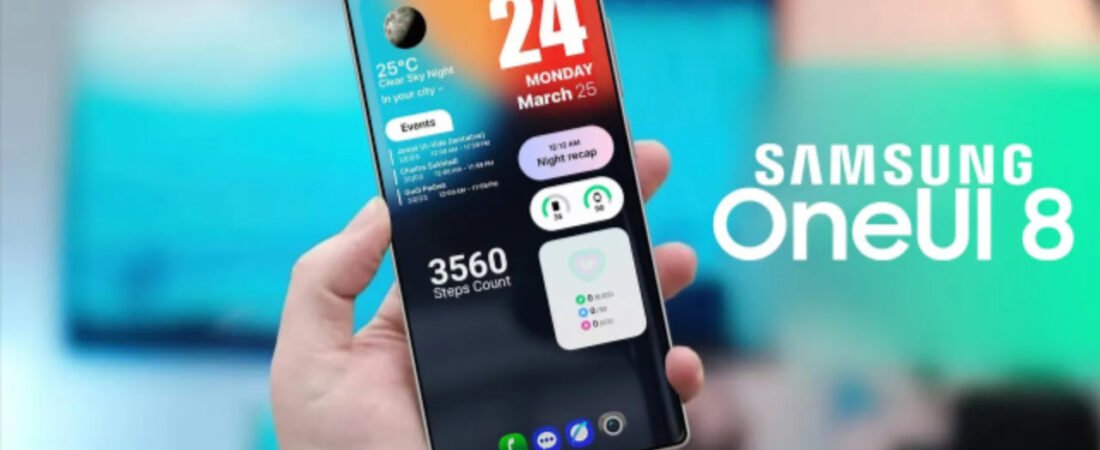
If you’ve recently updated your Samsung Galaxy device to One UI 8, you may have noticed frustrating delays with your lock screen widgets. Whether it’s the clock taking seconds to appear, music widgets lagging behind your audio, or weather information showing stale data, these delays can significantly impact your daily smartphone experience.
As an Information Technology Specialist at Accenture with over 5 years of hands-on experience troubleshooting enterprise and consumer technology, I’ve encountered these issues across multiple Galaxy devices. This guide provides proven, step-by-step solutions that address the root causes of One UI 8 lock screen widget delays—from software conflicts to background process optimization.
Understanding the Root Causes
Before diving into fixes, it’s important to understand why these delays occur. One UI 8 introduces significant architectural changes, including Android 16’s new background execution limits and enhanced battery optimization features. While these improve overall system efficiency, they can inadvertently throttle widget refresh rates.
The most common culprits include:
| Issue Category | Primary Cause | Affected Widgets |
|---|---|---|
| Good Lock Conflicts | Outdated LockStar module (below v7.0.1.10) | Adaptive Clock, custom layouts |
| Background Restrictions | Aggressive battery optimization | Weather, Calendar, Battery widgets |
| Cache Corruption | Accumulated system cache | All lock screen widgets |
| Live Activities Conflict | iOS-style live notifications competing for resources | Media widgets, Live Notifications |
Solution 1: Update the LockStar Good Lock Module (Critical Fix) {#step-1}
Samsung has officially confirmed that outdated LockStar modules cause severe lock screen widget malfunctions, including the Adaptive Clock feature failing to render properly or causing significant delays .
Step-by-Step Instructions:
- Open the Galaxy Store on your device
- Tap the hamburger menu (three horizontal lines) in the top-right corner
- Select Updates from the menu
- Locate LockStar in the update list
- If available, tap Update to install version 7.0.1.10 or higher
Alternative method via Good Lock:
- Open the Good Lock app
- Navigate to the Apps tab at the bottom
- Find LockStar in your installed modules
- Tap the update icon next to it
Pro Tip: If LockStar doesn’t appear in your updates, you may need to install it first from the Galaxy Store. The Adaptive Clock feature specifically requires this module to function without delays .
According to Samsung’s official community post, “We have confirmed that the Adaptive Clock (Stretch Clock) feature does not function properly on Galaxy devices running One UI 8 if the Good Lock LockStar app has not been updated to version 7.0.1.10” .
Solution 2: Optimize Background App Refresh Settings {#step-2}
One UI 8’s aggressive battery optimization often restricts widget background processes, causing update delays. Here’s how to configure optimal settings:
Disable Background App Refresh for Non-Essential Apps:
- Go to Settings > Battery and device care > Battery
- Tap Background usage limits
- Select Put unused apps to sleep and set it to OFF or extend the timeframe to 7 days
- Tap Never sleeping apps and add your critical widget apps (Weather, Calendar, Spotify, etc.)
Configure Individual App Battery Settings:
| App Type | Recommended Setting | Location |
|---|---|---|
| Weather widgets | Unrestricted | Settings > Apps > Weather > Battery |
| Music/Spotify | Unrestricted | Settings > Apps > [Music App] > Battery |
| Calendar | Optimized | Settings > Apps > Calendar > Battery |
| Third-party widgets | Unrestricted | Settings > Apps > [Widget App] > Battery |
To access these: Settings > Apps > Select the app > Battery > Choose Unrestricted .
Solution 3: Clear System Cache Partition {#step-3}
Accumulated cache data often causes widget rendering delays. Clearing the system cache can resolve these issues without deleting personal data.
For Devices with Physical Buttons:
- Power off your device completely
- Press and hold Volume Up + Power + Home (if applicable) simultaneously
- When the Samsung logo appears, release Power but continue holding Volume Up + Home
- Use volume keys to navigate to Wipe cache partition
- Press Power to confirm
- Select Yes and confirm
- Choose Reboot system now
For Modern Galaxy Devices (Buttonless):
- Connect your device to a computer via USB
- Press and hold Volume Up + Power until recovery mode appears
- Follow steps 4-7 above
Note: This process clears temporary system files only—your photos, apps, and settings remain intact.
Solution 4: Reset Lock Screen and Widget Preferences {#step-4}
Corrupted lock screen settings can cause persistent widget delays. Here’s how to reset these configurations:
- Go to Settings > Lock screen > Lock screen widgets
- Tap Reset to default (if available)
- Remove all widgets and re-add them one by one
- For Good Lock users: Open LockStar > Reset layout > Reconfigure your preferred layout
If you’re experiencing issues with the Adaptive Clock wrapping incorrectly around wallpaper subjects, try this workaround:
- Open Lock Screen editor
- Apply a decorative frame around the person/pet in your wallpaper
- Once the adaptive clock activates, remove the frame
- The adaptive effect will persist even after frame removal
Solution 5: Disable Live Activities (If Applicable) {#step-5}
One UI 8’s Live Activities feature—similar to iOS’s live notifications—can compete with widget resources, causing noticeable lag .
- Navigate to Settings > Notifications > Advanced settings
- Locate Live Activities or Live notifications
- Toggle OFF or limit to essential apps only
Additionally, consider changing your lock screen notification style from the default “Icons” to “Cards” for better visibility and potentially smoother rendering:
- Settings > Notifications > Lock screen
- Select Cards instead of Icons or Dot
Solution 6: Update All Good Lock Modules {#step-6}
While LockStar is the primary culprit, other outdated Good Lock modules can cause system-wide conflicts:
| Module | Minimum Version | Purpose |
|---|---|---|
| LockStar | v7.0.1.10+ | Lock screen customization |
| QuickStar | v9.0.00.01+ | Quick panel layout |
| NavStar | v8.0.00.4+ | Navigation bar customization |
| Home Up | Latest available | Home screen layout |
Update all modules via Galaxy Store > Menu > Updates or through the Good Lock app directly .
Solution 7: Factory Reset (Last Resort) {#step-7}
If widget delays persist after trying all above solutions, a factory reset may be necessary. Back up your data first using Samsung Cloud or Smart Switch.
- Settings > General management > Reset > Factory data reset
- Review the warning and tap Reset
- Enter your credentials if prompted
- Tap Delete all
After reset, install updates and Good Lock modules before restoring your backup to avoid reintroducing configuration conflicts.
Preventive Measures for Optimal Performance
To avoid future widget delays:
| Action | Frequency | Impact |
|---|---|---|
| Update Good Lock modules | Weekly | High |
| Clear app cache | Monthly | Medium |
| Restart device | Weekly | High |
| Review battery optimization settings | Monthly | High |
| Update One UI security patches | As released | Critical |
When to Contact Samsung Support
If you’ve exhausted all troubleshooting steps and widget delays persist, consider:
- Samsung Members app: Submit an error report with log files
- Samsung Community forums: Check for device-specific threads
- Authorized service centers: For potential hardware-related touch response issues
Samsung has acknowledged several One UI 8 lock screen bugs and is actively releasing patches. The One UI 8.5 Beta 4 specifically addresses “major lock screen problems” including clock scrolling issues .
Frequently Asked Questions (FAQ)
Why is my One UI 8 lock screen widget delayed?
One UI 8 lock screen widget delays are primarily caused by outdated LockStar Good Lock modules (below v7.0.1.10), aggressive battery optimization settings restricting background processes, accumulated system cache corruption, or conflicts with the new Live Activities feature competing for system resources.
How do I update LockStar to fix widget delays?
Open Galaxy Store, tap the hamburger menu, select Updates, find LockStar, and install version 7.0.1.10 or higher. Alternatively, open Good Lock app, go to the Apps tab, and tap the update icon next to LockStar.
Will clearing cache delete my photos and apps?
No. Clearing the system cache partition only removes temporary system files. Your personal photos, installed apps, contacts, and settings remain completely intact. This process is safe and often resolves widget rendering issues.
What battery setting should I use for weather widgets?
For weather widgets and other time-sensitive lock screen widgets, set the battery usage to ‘Unrestricted’ in Settings > Apps > Weather > Battery. This prevents One UI 8’s aggressive battery optimization from throttling background updates.
Conclusion
One UI 8 lock screen widget delays are frustrating but entirely fixable. The most critical step is ensuring your LockStar Good Lock module is updated to version 7.0.1.10 or higher—this single action resolves the majority of reported issues, including Adaptive Clock malfunctions .
By following this systematic approach—updating modules, optimizing battery settings, clearing cache, and configuring notifications properly—you can restore the smooth, responsive lock screen experience that Samsung devices are known for.
About the author–
Javed Ahmad is an Information Technology Specialist at Accenture with a postgraduate degree in IT and over 5 years of enterprise-level experience. He specializes in creating hands-on guides for B2B platforms, software tools, and FinTech, helping users solve complex technical problems with professional-grade accuracy. LinkedIn.