

Run Large Language Models locally on your Raspberry Pi 5 with complete data privacy and zero cloud dependencies
Introduction
Running AI models locally has become increasingly important for privacy-conscious developers and businesses. With the release of the Raspberry Pi 5, enthusiasts and professionals alike now have a powerful, energy-efficient platform capable of running Large Language Models (LLMs) entirely offline. This guide will walk you through setting up Ollama—a popular open-source tool for running LLMs—on your Raspberry Pi 5, ensuring your data never leaves your device.
Whether you’re prototyping AI applications, building private chatbots, or simply exploring local AI deployment, this step-by-step tutorial covers everything from hardware requirements to performance optimization.
Why Run Ollama on Raspberry Pi 5?
Before diving into the setup, let’s understand why this combination makes sense:
| Benefit | Description |
|---|---|
| Complete Privacy | All data processing happens locally; no internet required after setup |
| Cost Efficiency | One-time hardware cost vs. recurring API fees |
| Low Power Consumption | Pi 5 runs at 5-15W compared to 100W+ desktop GPUs |
| Edge Deployment | Deploy AI in remote locations without reliable internet |
| Learning Platform | Ideal for understanding LLM architecture and optimization |
The Raspberry Pi 5’s upgraded specs—2.4GHz quad-core ARM Cortex-A76 CPU, up to 8GB LPDDR4X RAM, and improved I/O—make it significantly more capable than previous generations for AI workloads.
Hardware Requirements
| Component | Minimum Spec | Recommended |
|---|---|---|
| Raspberry Pi | Pi 5 (4GB RAM) | Pi 5 (8GB RAM) |
| Storage | 32GB microSD | 128GB NVMe SSD via PCIe HAT |
| Power Supply | 27W USB-C PD | Official 27W USB-C PD |
| Cooling | Passive heatsink | Active cooler (official or aftermarket) |
| Internet | Initial setup only | Ethernet for faster model downloads |
Critical Note: While 4GB models work for smaller models (1-3B parameters), the 8GB variant is strongly recommended for models above 7B parameters.
Step 1: Prepare Your Raspberry Pi 5
1.1 Install Raspberry Pi OS
- Download Raspberry Pi OS Lite (64-bit) from the official website
- Flash to your microSD card using Raspberry Pi Imager
- Insert the card and boot your Pi 5
1.2 Initial System Configuration
Update your system packages to ensure compatibility:
sudo apt update && sudo apt full-upgrade -y
sudo reboot
After reboot, configure basic settings:
sudo raspi-configNavigate to:
- Performance Options → Enable 4K page size (if available)
- Advanced Options → Expand filesystem
- Interface Options → Enable SSH (optional, for remote access)
Step 2: Install Ollama on Raspberry Pi 5
2.1 Standard Installation
Ollama provides an official install script that works on ARM64 architecture:
curl -fsSL https://ollama.com/install.sh | shThis script automatically:
- Detects your architecture (ARM64 for Pi 5)
- Downloads the appropriate binary
- Sets up the systemd service
- Configures the Ollama CLI
2.2 Verify Installation
Check if Ollama is running:
ollama --version
systemctl status ollama
You should see the version number and an “active (running)” status for the service.
2.3 Manual Installation (Alternative)
If the automatic script fails:
# Download ARM64 binary directly
sudo curl -L https://ollama.com/download/ollama-linux-arm64 -o /usr/bin/ollama
sudo chmod +x /usr/bin/ollama

# Create systemd service
sudo useradd -r -s /bin/false -U -m -d /usr/share/ollama ollama
sudo usermod -a -G ollama $(whoami)

# Create service file
sudo tee /etc/systemd/system/ollama.service > /dev/null <<EOF
[Unit]
Description=Ollama Service
After=network-online.target

[Service]
ExecStart=/usr/bin/ollama serve
User=ollama
Group=ollama
Restart=always
RestartSec=3

[Install]
WantedBy=default.target
EOF

sudo systemctl daemon-reload
sudo systemctl enable ollama
sudo systemctl start ollama
Step 3: Pull and Run Your First Model
3.1 Understanding Model Sizes
Choose models based on your Pi 5’s RAM:
| Model Size | RAM Required | Speed | Use Case |
|---|---|---|---|
| 1B-3B | 2-4GB | Fast | Simple Q&A, text completion |
| 7B | 6-8GB | Moderate | General conversation, coding help |
| 13B+ | 8GB+ | Slow | Advanced reasoning (requires swap) |
3.2 Download a Lightweight Model
For 4GB Pi 5, start with TinyLlama or Phi-2:
# TinyLlama (1.1B parameters, ~600MB)
ollama pull tinyllama

# Microsoft's Phi-2 (2.7B parameters, ~1.6GB)
ollama pull phi
For 8GB Pi 5, try Llama 3.2 (3B) or Mistral 7B:
# Llama 3.2 (3B) - excellent balance of speed and quality
ollama pull llama3.2:3b

# Mistral 7B - high quality, requires 8GB
ollama pull mistral
3.3 Run Interactive Mode
Start chatting with your model:
ollama run tinyllamaYou’ll see a >>> prompt. Type your questions and press Enter. Exit with /bye or Ctrl+D.
Step 4: Optimize Performance on Pi 5
4.1 Enable ZRAM for Additional Virtual Memory
ZRAM compresses RAM contents, effectively increasing available memory:
sudo apt install zram-tools
sudo nano /etc/default/zramswap
Set:
ALGO=zstd
PERCENT=50
PRIORITY=100
Restart service:
sudo systemctl restart zramswap4.2 Configure Swap Space (Optional but Recommended)
For 13B+ models, add swap:
sudo dphys-swapfile swapoff
sudo nano /etc/dphys-swapfile
Modify:
CONF_SWAPSIZE=2048 # 2GB swapApply:
sudo dphys-swapfile setup
sudo dphys-swapfile swapon
4.3 CPU Governor Optimization
Set CPU to performance mode:
echo 'performance' | sudo tee /sys/devices/system/cpu/cpu*/cpufreq/scaling_governorMake permanent:
sudo apt install cpufrequtils
sudo systemctl enable cpufrequtils
4.4 Ollama-Specific Optimizations
Set environment variables for better performance:
sudo systemctl edit ollamaAdd:
[Service]
Environment="OLLAMA_NUM_PARALLEL=1"
Environment="OLLAMA_MAX_LOADED_MODELS=1"
Environment="OLLAMA_KEEP_ALIVE=24h"
This ensures only one model loads at a time and stays in memory for 24 hours.
Step 5: Access Ollama Remotely (Optional)
5.1 Enable Network Access
By default, Ollama binds to localhost. To access from other devices:
sudo systemctl edit ollamaAdd:
[Service]
Environment="OLLAMA_HOST=0.0.0.0:11434"
Restart:
sudo systemctl restart ollama5.2 Firewall Configuration
Allow port 11434:
sudo ufw allow 11434/tcp
sudo ufw enable
5.3 Connect from Another Device
From your laptop or phone:
export OLLAMA_HOST=http://your-pi-ip:11434
ollama list
ollama run llama3.2:3b
Step 6: Build Applications with Ollama API
Ollama provides a REST API for integration:
6.1 Generate Completion
curl http://localhost:11434/api/generate -d '{
  "model": "tinyllama",
  "prompt": "Explain quantum computing in simple terms",
  "stream": false
}'
6.2 Chat Endpoint
curl http://localhost:11434/api/chat -d '{
  "model": "llama3.2:3b",
  "messages": [
    {"role": "user", "content": "Write Python code for a calculator"}
  ],
  "stream": false
}'
6.3 Python Integration
Install the official library:
pip install ollamaExample script:
import ollama

response = ollama.chat(model='llama3.2:3b', messages=[
    {'role': 'user', 'content': 'Why is the sky blue?'}
])

print(response['message']['content'])
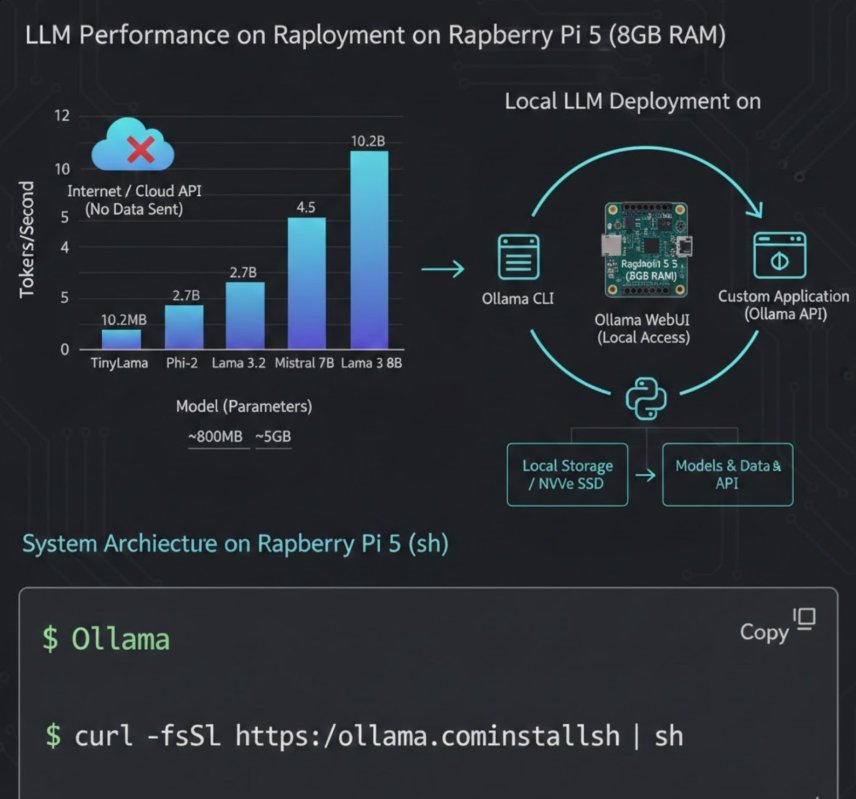
Performance Benchmarks
Based on community testing and official documentation:
| Model | Parameters | Tokens/Second | RAM Usage |
|---|---|---|---|
| TinyLlama | 1.1B | 8-12 t/s | ~800MB |
| Phi-2 | 2.7B | 4-6 t/s | ~1.8GB |
| Llama 3.2 | 3B | 3-5 t/s | ~2.5GB |
| Mistral | 7B | 1-2 t/s | ~5GB |
| Llama 3.1 | 8B | 0.8-1.5 t/s | ~6GB |
Results measured on Raspberry Pi 5 8GB with active cooling at 2.4GHz
Troubleshooting Common Issues
| Issue | Solution |
|---|---|
| “Out of memory” error | Use smaller model or enable ZRAM/swap |
| Slow generation speed | Close other applications; use 3B or smaller models |
| Model download fails | Check internet; retry with ollama pull modelname |
| Service won’t start | Check logs: journalctl -u ollama -n 50 |
| High temperature | Ensure active cooling; check with vcgencmd measure_temp |
Security Considerations
- Network Exposure: Only expose Ollama on trusted networks; use VPN for remote access
- Model Sources: Only pull models from official Ollama library or verified sources
- Data Persistence: Ollama stores models in
/usr/share/ollama; ensure adequate storage - Updates: Regularly update Ollama:
curl -fsSL https://ollama.com/install.sh | sh
Conclusion
Running Ollama on the Raspberry Pi 5 democratizes access to AI by enabling private, local LLM deployment on affordable hardware. While it won’t replace high-end GPUs for intensive tasks, it’s perfect for:
- Privacy-first AI assistants
- Offline development environments
- Educational projects
- IoT and edge AI applications
The combination of Ollama’s streamlined interface and the Pi 5’s improved performance creates a compelling platform for experimentation and production deployment alike.
Start with smaller models, optimize your setup, and gradually explore larger models as your needs grow. The future of AI is not just in the cloud—it’s also on your desk, running silently on a credit-card-sized computer.
Frequently Asked Questions
Q: Can I run Ollama on Raspberry Pi 4?
A: Yes, but performance will be significantly slower. The Pi 5’s Cortex-A76 cores provide ~2-3x better performance than Pi 4’s Cortex-A72.
Q: How do I update models?
A: Run ollama pull modelname again to fetch the latest version.
Q: Can I run multiple models simultaneously?
A: Not recommended on Pi 5 due to RAM constraints. Use OLLAMA_MAX_LOADED_MODELS=1 to prevent automatic loading.
Q: Is GPU acceleration available?
A: Not currently. Ollama on ARM uses CPU inference only. The Pi 5’s VideoCore VII GPU is not supported for LLM acceleration yet.
About the author–
Javed Ahmad is an Information Technology Specialist at Accenture with a postgraduate degree in IT and over 5 years of enterprise-level experience. He specializes in creating hands-on guides for B2B platforms, software tools, and FinTech, helping users solve complex technical problems with professional-grade accuracy. LinkedIn.