
If you’ve noticed that the familiar padlock icon in your Chrome address bar has disappeared—or been replaced by a strange “tune” icon resembling a vertical slider—you’re not alone. As an IT specialist who regularly troubleshoots browser configurations for enterprise clients, I’ve fielded countless questions about this change. Some users want to restore the lock icon for security reassurance, while others want to remove security indicators entirely for specific use cases like kiosk displays or presentations.
Here’s the critical context: Google officially retired the padlock icon in September 2023 with the release of Chrome 117, replacing it with a neutral “tune” icon to combat widespread user misunderstanding about what the lock actually represents . However, depending on your Chrome version and platform, you might still see the lock icon, or you might want to hide security indicators entirely for legitimate business purposes.
In this comprehensive guide, I’ll walk you through exactly how to manage, modify, or remove the lock/tune icon on Chrome’s address bar across different scenarios and platforms.
Understanding the Change: Why the Lock Icon Disappeared
Before attempting to “remove” the lock icon, it’s essential to understand what you’re actually seeing. Google’s decision to replace the padlock wasn’t arbitrary—it was based on alarming research data:
“Our research in 2021 showed that only 11% of study participants correctly understood the precise meaning of the lock icon. This misunderstanding is not harmless—nearly all phishing sites use HTTPS, and therefore also display the lock icon.” — Chromium Blog, May 2023
What the lock icon actually meant: The connection is encrypted (HTTPS), preventing eavesdropping during data transmission.
What users mistakenly believed: The website is safe, trustworthy, and legitimate—which is false, as malicious sites can easily obtain SSL certificates .
The replacement: A “tune” icon (resembling two vertical sliders) that indicates site settings and permissions without implying trustworthiness .

*Figure 1: The new Chrome “tune” icon (left) replaced the traditional padlock (right) in September 2023 *
| Icon | Appearance | Meaning | Availability |
|---|---|---|---|
| Padlock | 🔒 Traditional lock | HTTPS encryption active | Pre-Chrome 117; occasionally appears in newer versions due to bugs |
| Tune Icon | ⫚ Vertical sliders | HTTPS encryption + site settings access | Chrome 117+ (Desktop & Android) |
| No Icon | — | HTTP connection (insecure) or iOS | HTTP sites show “Not Secure” warning instead |
Table 1: Chrome security indicator evolution by version and platform
Scenario 1: You Want to Restore the Old Lock Icon (Reverse the Tune Icon)
⚠️ Critical Update for 2026: As of Chrome 125 (released May 2024) and all subsequent versions including the current Chrome 130-132, the chrome-refresh-2023 flag has been officially deprecated and removed by Google . The steps below will only work on Chrome versions 117-124. For most users on Chrome 130+, this flag is now retired and no longer available.
If you’re running Chrome 117-124, you can temporarily restore the traditional padlock for familiarity or enterprise compliance reasons:
Step 1: Verify Your Chrome Version
Desktop:
- Open Chrome
- Type
chrome://version/in the address bar and press Enter - Look at the first line—if it says 117.0.XXXX.XX through 124.0.XXXX.XX, you may still have access to the flag
For Chrome 130+ Users: Skip to Scenario 2 or 3, as the refresh flag is no longer available in your version.
Step 2: Access Chrome Flags (Experimental Features)
Chrome allows power users to revert certain UI changes through hidden flags. Note: These are experimental features that may change or disappear in future updates.
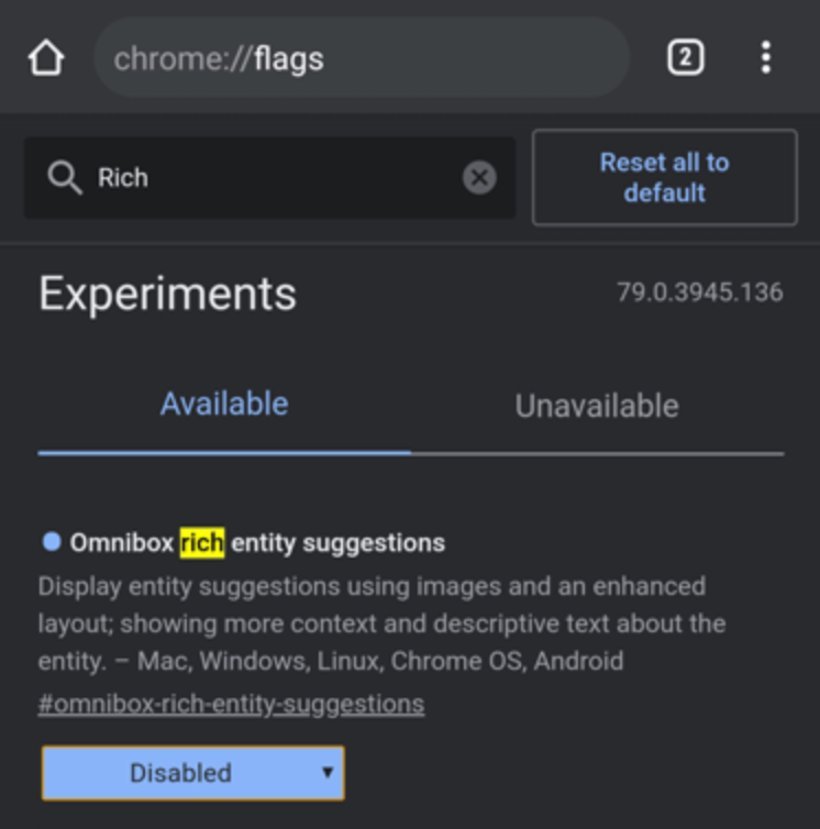
- Type
chrome://flagsin your address bar and press Enter - In the search box at the top, type:
chrome-refresh-2023 - Look for the flag labeled “Chrome Refresh 2023” or “Chrome WebUI Refresh 2023”
Step 3: Disable the Refresh Flag
- Click the dropdown menu next to the flag (currently set to “Default” or “Enabled”)
- Select “Disabled”
- Click the “Relaunch” button that appears at the bottom right of the page
Expected Result: Chrome will restart and revert to the pre-2023 interface, including the padlock icon instead of the tune icon.
⚠️ Important Caveat for 2026: Google has completely phased out these flags in Chrome 125+. If you don’t see this flag, or if disabling it doesn’t restore the lock icon, Google has retired the legacy interface for your specific Chrome build. Alternative browsers like Cromite or Thorium maintain these flags for users who require the classic interface .
Scenario 2: You Need to Completely Hide the Security Icon (Enterprise/Kiosk Use)
For IT administrators setting up kiosk displays, digital signage, or presentation environments, you might need to hide the entire address bar including security icons. Here are the legitimate methods:
Method A: Chrome Application Mode (Windows/Mac/Linux)
This launches Chrome without the address bar, toolbars, or security indicators—ideal for dedicated web applications.
Step 1: Create a Custom Shortcut
On Windows:
- Right-click on your desktop → New → Shortcut
- In the location field, paste your Chrome path followed by application mode parameters. It should look like this:
"C:\Program Files\Google\Chrome\Application\chrome.exe" --app=https://www.yoursite.com- Click Next → Name your shortcut → Click Finish
Step 2: Modify the Shortcut Properties
- Right-click your new shortcut → Properties
- In the Target field, ensure the format is exactly:
"C:\Program Files\Google\Chrome\Application\chrome.exe" --app=https://www.yoursite.com- Click OK
Result: Chrome opens in a clean window showing only your specified website—no address bar, no lock icon, no tune icon .
To exit: Press Alt+F4 or use the site’s navigation.
Method B: Progressive Web App (PWA) Mode
For a more permanent, installable solution without the address bar:
Step 1: Install Site as PWA
- Navigate to the website in Chrome
- Click the three-dot menu (⋮) → “Install [Site Name]…” or look for the install icon (➕) in the address bar
- Click Install
Step 2: Configure Display Mode (Developers/Advanced Users)
If you’re deploying a custom web application, modify the manifest.json file:
{
  "display": "standalone",
  "name": "Your App Name",
  "start_url": "/",
  "icons": [...]
}
Key values:
"standalone": Opens like a native app, minimal browser UI"fullscreen": No browser UI at all—complete immersion
Result: When users launch the PWA from their desktop, they see no address bar and therefore no security icons.
Method C: Kiosk Mode for Public Displays
For true lockdown environments (museums, libraries, customer service terminals):
*Figure 2: Chrome running in Kiosk Mode displays only the web content with no browser chrome or security indicators *
Windows Command:
chrome.exe --kiosk https://www.yoursite.comAdditional useful flags:
--incognito: Don’t save browsing data--disable-pinch: Disable zoom gestures on touchscreens--overscroll-history-navigation=0: Disable swipe navigation
⚠️ Security Warning: When hiding the address bar, users cannot verify they’re on HTTPS. Only use this for internal, trusted applications or implement additional security measures like MDM (Mobile Device Management) solutions .
Scenario 3: You See the Lock Icon Again (Unexpected Return)
Some users reported in early 2024 that the padlock icon suddenly reappeared after a Chrome OS update, despite being on versions where it should have been replaced by the tune icon .
Diagnostic Steps:
Step 1: Confirm It’s Not a Bug
- Check if you’re part of a “Finch experiment” (Google’s A/B testing system):
- Type
chrome://version/and look for variations listed under “Variations” - If you see experimental flags, you may be in a test group
Step 2: Report the Issue
If the lock icon reappears unexpectedly:
- Press
Alt+Shift+I(Windows/Linux) orOption+Shift+I(Mac) - Describe the issue: “Lock icon returned after update despite being on Chrome 12X”
- Include screenshots
- Submit feedback directly to the Chrome team
Step 3: Force Refresh the UI
- Type
chrome://flagsin the address bar - Search for
chrome-refresh-2023 - Toggle it Enabled (if currently Disabled) or Disabled (if currently Enabled)
- Relaunch Chrome
- If the icon persists, it may be a server-side experiment you cannot control locally
Scenario 4: Remove the Lock Icon on Mobile (Android/iOS)
Android Devices:
Option 1: Add to Home Screen (Shortcut Method)
- Open Chrome and navigate to the website
- Tap the three-dot menu (⋮) → “Add to Home screen”
- Name the shortcut → Tap Add
- When launched from the home screen, this opens in a simplified view without the full address bar
Option 2: Use Chrome Flags (Advanced)
- Type
chrome://flagsin Chrome for Android - Search for
chrome-refresh-2023 - Disable it (if available) to potentially revert to older UI elements
iOS Devices (iPhone/iPad):
Critical Note: On iOS, Chrome completely removed the lock icon entirely (not replaced with tune icon) because it wasn’t tappable in Apple’s WebKit implementation . You cannot restore it because it never existed in the same way as desktop.
Important Context on iOS WebKit Limitations: Because Apple requires all browsers on iOS to use the WebKit rendering engine (rather than Chrome’s native Blink engine), Chrome on iOS often lags significantly behind desktop UI changes. This architectural constraint means iOS Chrome lacks many experimental flags available on desktop and typically receives UI updates months later—if at all . For example, features like WebRTC, getUserMedia, and advanced DevTools capabilities were delayed by up to five years on iOS compared to desktop Chrome due to WebKit limitations .
To hide the address bar on iOS:
- Open the website in Chrome
- Tap the Share button (square with arrow)
- Scroll down and tap “Add to Home Screen”
- Open from the home screen icon for a streamlined view without the full address bar
Important Security Considerations
Before you remove or hide security indicators, understand the risks:
| Action | Security Impact | Recommendation |
|---|---|---|
| Disabling Chrome Refresh 2023 | Low—just reverts UI, doesn’t affect actual encryption | Safe for personal preference (Chrome 117-124 only) |
| Application Mode (–app) | Medium—users can’t verify HTTPS | Only use for trusted internal sites |
| Kiosk Mode | High—full screen, no security indicators | Implement MDM and network-level security |
| PWA Standalone | Low-Medium—no visible address bar | Ensure site uses HSTS and proper certificates |
Table 2: Security implications of hiding address bar elements
| Action | Control Loss | Risk Level | Best Practice |
| Hiding Icons | Visual HTTPS Verification | Medium | Use only for known, internal URLs |
| Kiosk Mode | Browser Navigation/URL Visibility | High | Implement network-level DNS filtering |
| Disabling Flags | UI Consistency | Low | Accept new standards for 2026 compatibility |
Best Practices for Enterprise:
- Never hide security indicators on public-facing kiosks that handle sensitive data
- Use network-level DNS filtering (like Cisco Umbrella or Cloudflare Gateway) to block malicious domains
- Implement certificate pinning for internal applications
- Consider using dedicated kiosk software instead of Chrome flags for production environments
Troubleshooting Common Issues
Issue: Flags Don’t Save or Revert Automatically
Cause: Google is phasing out legacy flags as the new UI stabilizes. In Chrome 130+, flags that were marked for deprecation in version 125 are now completely removed .
Solution:
- Accept that the tune icon is the new standard
- If you absolutely need the lock icon for compliance reasons, consider using Firefox or Edge, which may retain padlock icons longer
- For enterprise environments, consider policy-based browser management rather than experimental flags
Issue: “Not Secure” Warning Still Appears
Cause: You’re trying to access an HTTP (non-encrypted) site.
Solution:
- This is intentional and cannot be hidden without compromising security
- Contact the website owner to implement HTTPS
- Do not proceed with entering sensitive data on HTTP sites
Issue: Tune Icon is Unclickable
Cause: Site uses invalid or expired SSL certificate, or you’re on iOS.
Solution:
- Check if the site loads properly
- On iOS, Chrome doesn’t support clicking the security icon—use Safari to view certificate details if needed
Summary: Your Options at a Glance
| Goal | Method | Difficulty | Chrome Version | Status (2026) |
|---|---|---|---|---|
| Restore old lock icon | Disable chrome-refresh-2023 flag | Easy | 117-124 | ⚠️ Deprecated – Flag removed in Chrome 125+ |
| Hide all address bar elements | Application mode (--app) | Medium | All versions | ✅ Active |
| Create app-like experience | PWA installation | Easy | All versions | ✅ Active |
| Lock down public display | Kiosk mode (--kiosk) | Advanced | All versions | ✅ Active |
| Mobile streamlined view | Add to Home Screen | Easy | All versions | ✅ Active |
Conclusion
The removal of the padlock icon from Chrome represents a fundamental shift in how browsers communicate security—moving from positive indicators (showing when things are secure) to negative indicators (warning only when things are insecure). While you could temporarily restore the old icon through Chrome flags in versions 117-124, Google has officially retired these flags as of Chrome 125 (May 2024) .
For users on Chrome 130+ in 2026, the tune icon is now the permanent standard. Rather than fighting the change, I recommend embracing it while educating your users or clients about its meaning. The tune icon actually provides more functionality than the old lock, offering quick access to site permissions, cookies, and security details in a more intuitive location .
For enterprise deployments requiring hidden address bars, always implement defense-in-depth strategies—don’t rely solely on visual indicators for security. Network filtering, endpoint protection, and user education remain your strongest defenses.
Still have questions about Chrome security configurations? Connect with me on LinkedIn or explore more enterprise IT guides on Tech Table Pro.
About the author–
Javed Ahmad is an Information Technology Specialist at Accenture with a postgraduate degree in IT and over 5 years of enterprise-level experience. He specializes in creating hands-on guides for B2B platforms, software tools, and FinTech, helping users solve complex technical problems with professional-grade accuracy. LinkedIn.