

Mozilla Firefox has long been the browser of choice for privacy-conscious users seeking an alternative to Chromium-based browsers. With the release of Firefox 148 on February 24, 2026, Mozilla introduced a centralized AI controls menu—a significant shift toward user agency in an era of ubiquitous artificial intelligence integration .
This update arrives amid growing user fatigue with mandatory AI features in software. According to Mozilla’s official announcement: “AI is changing the web, and people want very different things from it. We’ve heard from many who want nothing to do with AI. We’ve also heard from others who want AI tools that are genuinely useful” . The solution? A comprehensive “kill switch” and granular controls that put you in complete command of your browsing experience.
In this guide—based on Mozilla’s official documentation and hands-on testing—I’ll walk you through exactly how to disable the Firefox 148 AI controls menu using multiple methods, from the simple master toggle to advanced configuration for power users.
What Are the AI Features in Firefox 148?
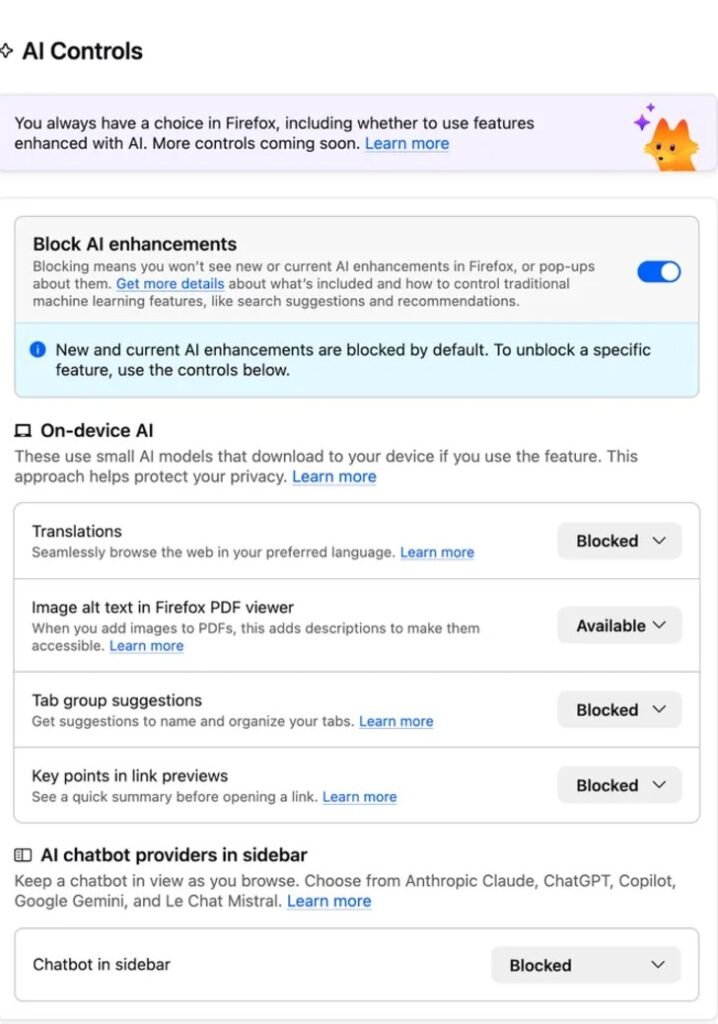
Before disabling anything, understand what you’re managing. Firefox 148 includes five primary generative AI and machine learning features, all accessible through the new AI controls section :
| AI Feature | Description | Processing Location |
|---|---|---|
| AI Chatbot Sidebar | Access to ChatGPT, Claude, Gemini, Copilot, and Mistral directly from the browser sidebar | External provider servers |
| AI-Enhanced Translations | Real-time webpage translation using generative AI | On-device (local processing) |
| Alt Text for PDFs | Automatic accessibility descriptions for images in PDF documents | On-device ML processing |
| Smart Tab Grouping | AI-suggested tab groups and names based on your open tabs | Local processing only |
| Link Previews | AI-generated key points when hovering over links | On-device processing |
Critical Privacy Note: Mozilla emphasizes that most features use on-device AI/ML processing—your browsing data isn’t sent to Mozilla’s servers for model training . However, when using third-party chatbots (like ChatGPT or Claude), your queries are processed by those respective services under their privacy policies .
Method 1: Using the Master “Block AI Enhancements” Switch (Recommended)
Firefox 148 introduces a single toggle that disables all current and future AI features—what Mozilla calls the comprehensive “Block AI enhancements” control . This is the fastest, most reliable way to completely remove AI functionality.
Visual Overview of the AI Controls Menu
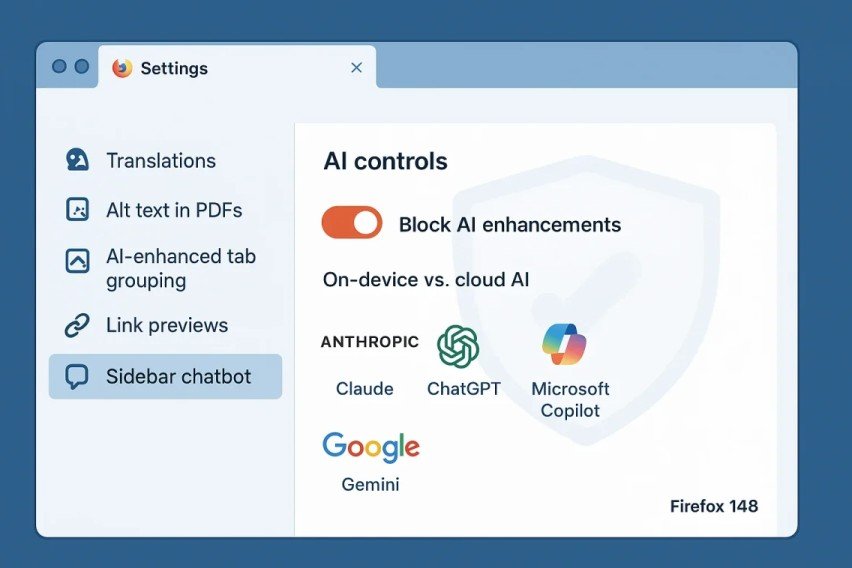
When you navigate to the AI controls section, you’ll see a clean interface with a prominent master toggle at the top. According to Mozilla’s official preview, the page displays:
- A purple/blue toggle switch labeled “Block AI enhancements” at the top
- Five individual feature cards below showing Translations, Alt text in PDFs, AI-enhanced tab grouping, Link previews, and AI chatbot in the sidebar
- Status indicators showing “Available,” “Enabled,” or “Blocked” for each feature
- A confirmation message when the master switch is activated: “You won’t see pop-ups or reminders to use existing or upcoming AI features”
Step-by-Step Instructions:
Step 1: Open Firefox Settings
- Click the hamburger menu (≡) in the top-right corner of Firefox
- Select “Settings” from the dropdown menu
- Alternatively, type
about:preferencesin the address bar and press Enter
Step 2: Navigate to AI Controls
- In the left sidebar, scroll down and click on “AI Controls”
- This section is located under the “Privacy & Security” category in Firefox 148
Step 3: Enable the Master Switch
- Locate the “Block AI enhancements” toggle at the top of the page (this appears as a large, prominent switch)
- Click the toggle to turn it ON (the switch will slide to the right and turn purple/blue when enabled)
Step 4: Verify the Change
- Once enabled, observe that all five individual AI features below automatically display “Blocked” status
- Look for the confirmation text: “You won’t see pop-ups or reminders to use existing or upcoming AI features”
- Close the Settings tab—changes apply immediately without browser restart
Key Benefits of This Method:
- ✅ Disables all current AI features instantly
- ✅ Blocks future AI features from appearing in updates (Mozilla guarantees preferences persist across updates)
- ✅ Removes promotional pop-ups, nudges, and reminders about AI tools
- ✅ Reversible anytime by toggling the switch OFF
Method 2: Selective Disabling of Individual AI Features
If you want to keep some AI features while disabling others, Firefox 148 allows granular control. This is ideal if, for example, you want to keep AI translations (which runs locally) but remove the sidebar chatbot (which connects to external services).
Visual Layout of Individual Controls
Below the master toggle, the AI Controls page displays five distinct feature cards arranged vertically. Each card contains:
- Feature name (e.g., “Translations,” “Alt text in PDFs”)
- Brief description of the functionality
- Dropdown menu currently showing the feature’s status
- Info icon linking to Mozilla’s documentation for that specific feature
Step-by-Step Instructions:
Step 1: Access AI Controls Settings
- Follow Steps 1-2 from Method 1 to reach the AI Controls page
Step 2: Ensure Master Switch is OFF
- Verify that “Block AI enhancements” is toggled OFF (gray/white position, left side)
- This enables individual feature configuration
Step 3: Configure Individual Features
For each AI feature card, click the dropdown menu and select your preference:
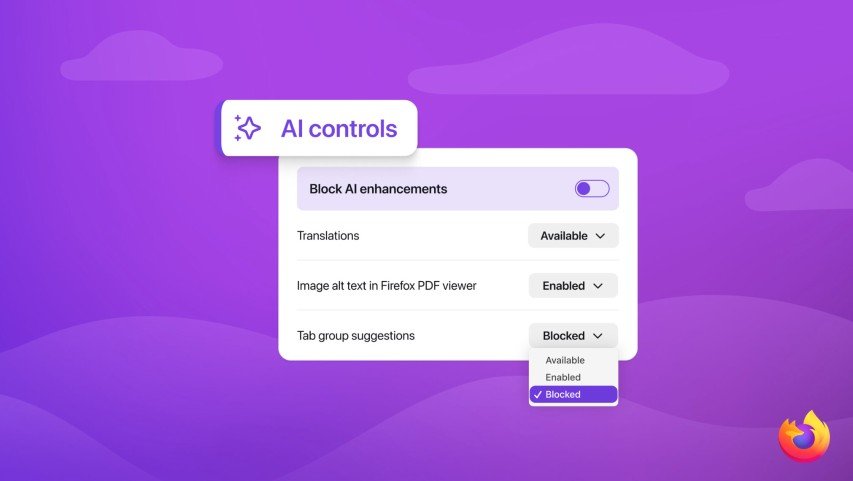
| Dropdown Option | Visual Indicator | What It Means |
|---|---|---|
| Available | Green dot or checkmark | Feature is visible in interface and ready to use when needed |
| Enabled | Blue highlight | Feature is actively turned on and running |
| Blocked | Gray/Red “X” or “Blocked” text | Feature is completely disabled and hidden from the interface |
Recommended Configurations for Specific Needs:
For Privacy-Focused Users:
- AI Chatbot Sidebar → Blocked (prevents data sharing with external AI providers)
- Link Previews → Blocked (prevents AI from reading page content)
- Smart Tab Grouping → Blocked
- Keep Translations → Available (useful and privacy-respecting, runs locally)
For Performance Optimization:
- All features → Blocked (reduces memory and CPU usage)
- Alternatively, use the master switch from Method 1 for maximum efficiency
For Minimal Distractions:
- AI Chatbot Sidebar → Blocked (removes sidebar button)
- Link Previews → Blocked (stops hover pop-ups)
- Keep Smart Tab Grouping → Available (only appears when actively organizing tabs)
Step 4: Apply and Test
- Changes take effect immediately—no browser restart required
- Test by opening a new tab or visiting a webpage to confirm unwanted features are gone
Method 3: Advanced Configuration via about:config
For users who want absolute certainty that AI features are disabled at the browser engine level—or those running Firefox versions prior to 148 who need to disable AI features manually—the about:config method provides deep system-level control .
⚠️ Warning: This method is for advanced users only. Incorrect changes to about:config can affect browser stability. Proceed with caution.
Step-by-Step Instructions:
Step 1: Access Advanced Configuration
- Type
about:configin the Firefox address bar - Press Enter
- Click “Accept the Risk and Continue” when the warning appears
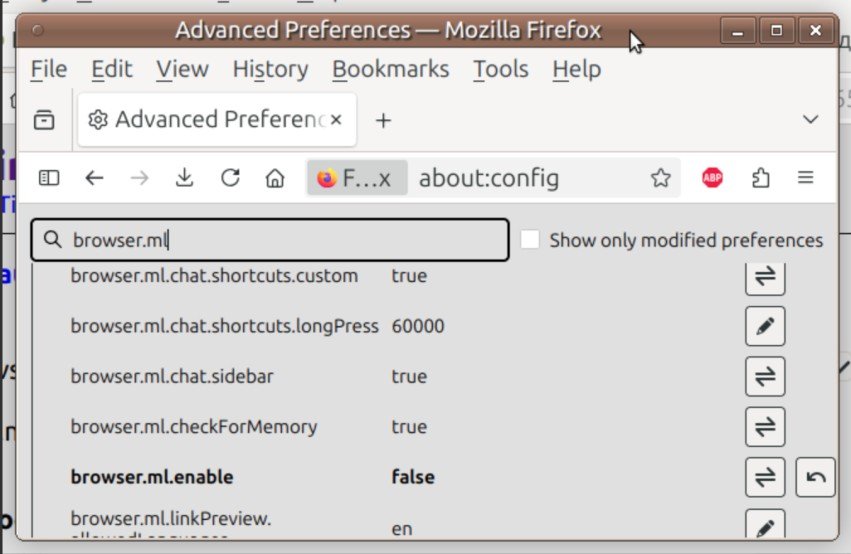
Step 2: Search for AI-Related Preferences
- In the search bar at the top, type:
browser.ml - This filters all machine learning and AI-related settings (you’ll see approximately 10-15 preferences)
Step 3: Modify Key Preferences
Double-click each preference below to change its value from true to false:
| Preference Name | Function | Recommended Setting |
|---|---|---|
browser.ml.enable | Master switch for all ML/AI features | false |
browser.ml.chat.enabled | AI chatbot functionality | false |
browser.ml.chat.sidebar | Sidebar chatbot panel | false |
browser.ml.chat.page | On-page chat menu when selecting text | false |
browser.ml.chat.page.menuBadge | “Ask AI” badge in page menu | false |
browser.ml.chat.page.footerBadge | Floating AI badge at page bottom | false |
browser.ml.chat.shortcuts | Text selection shortcuts | false |
browser.ml.linkPreview.enabled | AI-powered link previews | false |
browser.tabs.groups.smart.enabled | AI tab grouping suggestions | false |
browser.tabs.groups.smart.userEnabled | User control for smart groups | false |
extensions.ml.enabled | Extensions using Firefox ML API | false |
Step 4: Disable Sidebar Notifications
- Search for:
sidebar.notification.badge.aichat - Set to:
false(removes notification badges about AI features)
Step 5: Verify Changes
- All modified preferences should display as
false(shown in bold text in the about:config interface) - Changes apply immediately without restart
Creating a Permanent Configuration File
To ensure these settings persist across Firefox updates, create a user.js file in your Firefox profile directory :
// Firefox AI Disable Configuration
// Place this in your Firefox profile folder as user.js

user_pref("browser.ml.enable", false);
user_pref("browser.ml.chat.enabled", false);
user_pref("browser.ml.chat.page", false);
user_pref("browser.ml.chat.page.menuBadge", false);
user_pref("browser.ml.chat.page.footerBadge", false);
user_pref("browser.ml.chat.menu", false);
user_pref("browser.ml.chat.shortcuts", false);
user_pref("browser.ml.chat.sidebar", false);
user_pref("browser.ml.linkPreview.enabled", false);
user_pref("browser.tabs.groups.enabled", false);
user_pref("browser.tabs.groups.smart.enabled", false);
user_pref("browser.tabs.groups.smart.userEnabled", false);
user_pref("extensions.ml.enabled", false);
user_pref("sidebar.revamp", false);
user_pref("sidebar.notification.badge.aichat", false);
Location of Profile Folder:
- Windows:
%APPDATA%\Mozilla\Firefox\Profiles\[random].default-release\ - macOS:
~/Library/Application Support/Firefox/Profiles/[random].default-release/ - Linux:
~/.mozilla/firefox/[random].default-release/
Method 4: Removing the AI Chatbot from Sidebar Only
If your primary concern is the AI chatbot button in the sidebar (which can be accidentally clicked), you can remove just that element while keeping other AI features accessible .
Visual Identification:
The AI chatbot button appears as a sparkle/robot icon in the vertical sidebar on the left side of Firefox. When you click the gear icon at the bottom of this sidebar, you’ll see a “Customize sidebar” panel with checkboxes for each tool.
Step-by-Step Instructions:
Step 1: Open Sidebar Settings
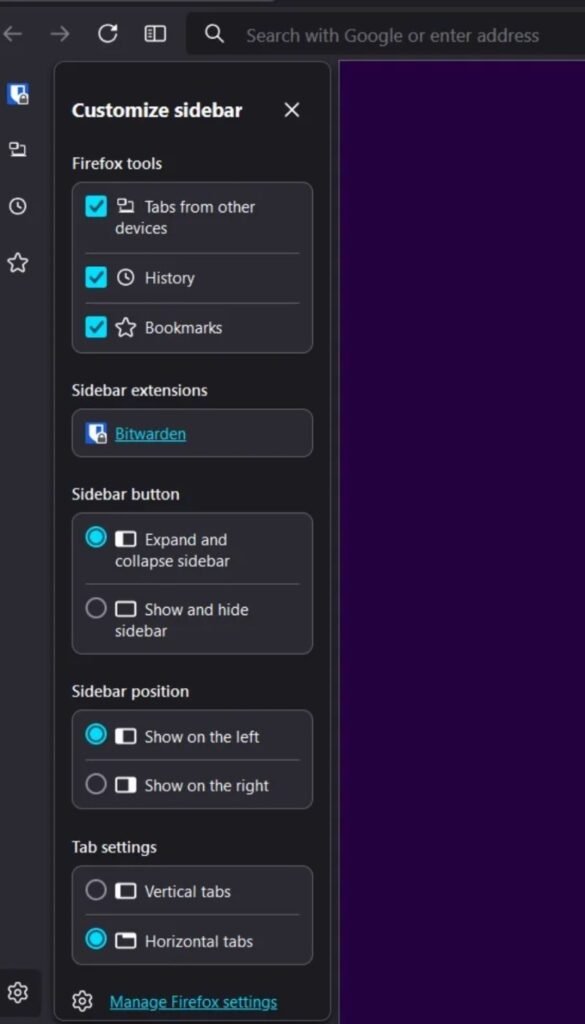
- Look for the gear icon (⚙️) at the bottom of the Firefox sidebar
- Click it to open “Customize sidebar”
Step 2: Disable AI Chatbot
- In the “Firefox tools” section, find “AI Chatbot” (listed with a sparkle icon)
- Uncheck the box next to it
- The chatbot icon disappears from the sidebar immediately
Important Limitation: This method only hides the sidebar button. The AI chatbot may still be accessible through other entry points (like right-click context menus) unless fully disabled via Method 1 or 2 .
Troubleshooting Common Issues
Issue: AI Features Keep Reappearing After Updates
Solution: This happens when Firefox updates reset preferences. Mozilla officially states that AI preferences “stay in place across updates” when set through the Settings menu . However, if you experience resets:
- Use Method 3 (the
user.jsfile) to enforce settings permanently - The
user.jsfile overrides default settings every time Firefox starts
Issue: “AI Controls” Section Missing in Settings
Solution: You’re likely running Firefox version 147 or earlier. The AI controls menu was introduced specifically in Firefox 148 (released February 24, 2026) . Update Firefox via:
- Menu ≡ → Help → About Firefox → Check for Updates
If you cannot update to version 148, use Method 3 (about:config) to disable AI features in older versions.
Issue: about:config Changes Don’t Stick
Solution: Some enterprise or organizational Firefox installations have policies that override user preferences. Check:
- Type
about:policiesin the address bar - If any policies are listed, contact your IT administrator
Alternatively, ensure Firefox isn’t set to “Refresh” on startup:
- Settings → General → Startup → Verify “Restore previous session” settings
Issue: Performance Issues Persist After Disabling AI
Solution: AI features in Firefox use on-device processing, meaning they don’t typically impact performance when disabled. If Firefox remains slow:
- Check
about:performanceto identify resource-heavy tabs - Disable hardware acceleration: Settings → General → Performance → Uncheck “Use recommended performance settings” → Uncheck “Use hardware acceleration when available”
- Consider using Firefox ESR (Extended Support Release), which currently doesn’t include AI features
Privacy and Security Considerations
As an IT professional, I always emphasize understanding the privacy implications of browser features. Mozilla’s official documentation provides clear guidance on how Firefox handles AI data :
✅ Privacy-Respecting Aspects:
- On-device processing: Most AI features (translations, tab grouping, PDF alt text) run locally using your computer’s hardware—your data never leaves your device
- No data harvesting: Mozilla explicitly states they don’t use your browsing data to train AI models
- Optional by design: Firefox is not automatically enrolling users into AI features; they require explicit opt-in before AI models are downloaded
⚠️ Privacy Considerations:
- Third-party chatbots: When using the AI chatbot sidebar with providers like ChatGPT, Claude, or Gemini, your queries are processed by those companies’ servers under their respective privacy policies
- Link previews: The AI reads page content to generate previews—while this happens locally, it processes content of pages you haven’t explicitly visited
Official Mozilla Statement: “Firefox is not automatically enrolling users into AI features or changing default behavior. AI features will continue to be opt-in… By default, the AI features available in Firefox 148 are visible in the interface, but they require user opt-in before they can be used. AI models are downloaded only when a user opts in and uses a specific feature for the first time” .
Recommendation: If privacy is your primary concern, use Method 1 (Block AI enhancements) to disable all features, or selectively block only those that interact with external services (AI chatbot) while keeping on-device features (translations) enabled.
| Method | Best For | Technical Effort | Persistence |
| Master Toggle | Most Users | Very Low | High |
| Granular Control | Custom Needs | Low | High |
about:config | Power Users | Medium | Very High |
user.js File | SysAdmins | High | Permanent |
Alternative Browsers Without AI Features
If you prefer a browser that doesn’t include AI functionality at all, consider these Firefox-based alternatives :
| Browser | AI Features | Best For |
|---|---|---|
| LibreWolf | None | Maximum privacy, no telemetry |
| Waterfox | None | Legacy extension support |
| Firefox ESR | None (currently) | Enterprise environments, stability |
| Pale Moon | None | Old hardware, classic interface |
These browsers maintain compatibility with Firefox extensions while removing AI and telemetry features entirely. Firefox ESR (Extended Support Release) is particularly suitable for enterprise environments requiring stability without AI integration .
Conclusion
Mozilla’s introduction of AI controls in Firefox 148 represents a significant step toward user agency in the AI era. Whether you choose the simplicity of the master “Block AI enhancements” switch or prefer granular control over individual features, Firefox now offers the transparency and choice that privacy-conscious users demand.
For most users, I recommend Method 1 (the master switch) for complete peace of mind. It’s quick, reversible, and ensures you won’t be bothered by future AI feature rollouts. As Mozilla confirms: “Once you set your AI preferences in Firefox, they stay in place across updates” .
Power users and those in restricted environments should consider Method 3 (about:config) for permanent, system-level disabling. The visual interface of the AI Controls menu makes Method 1 and 2 accessible even for non-technical users, fulfilling Mozilla’s commitment to “real user choice and control” .
Remember: Your browser should work for you, not the other way around. Firefox 148 finally makes that philosophy a reality for AI features.
Have questions about Firefox configuration or privacy settings? Connect with me on LinkedIn or drop a comment below. I regularly help IT professionals and everyday users navigate complex software configurations with confidence.
About the author–
Javed Ahmad is an Information Technology Specialist at Accenture with a postgraduate degree in IT and over 5 years of enterprise-level experience. He specializes in creating hands-on guides for B2B platforms, software tools, and FinTech, helping users solve complex technical problems with professional-grade accuracy. LinkedIn.