
Introduction
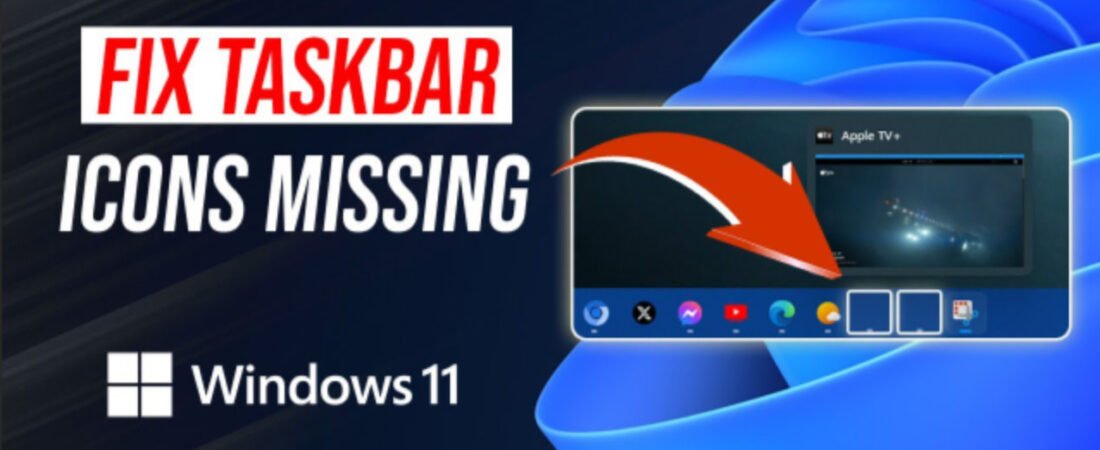
There’s nothing more frustrating than booting up your Windows 11 PC after a routine update only to find your taskbar icons have vanished. Whether it’s the Start menu, File Explorer, or your pinned applications, missing taskbar icons can severely impact your productivity and workflow.
According to Microsoft support forums and user reports, taskbar icon issues have been a recurring problem following major Windows 11 updates, particularly after the 22H2 and 23H2 feature updates . As an IT specialist with hands-on experience troubleshooting enterprise environments, I’ve encountered this issue across multiple systems and developed a reliable set of solutions.
Why Do Taskbar Icons Disappear After Windows 11 Updates?
Before diving into solutions, understanding the root causes helps prevent future occurrences:
| Cause | Description | Frequency |
|---|---|---|
| Corrupted System Files | Update processes may corrupt shell-related DLLs or icon cache files | Common |
| Explorer.exe Glitches | Windows Explorer process crashes or fails to load properly | Very Common |
| Graphics Driver Conflicts | Incompatible GPU drivers post-update | Moderate |
| Third-Party Software Conflicts | Antivirus or customization tools interfering with shell | Moderate |
| Registry Corruption | Registry keys related to taskbar settings damaged | Rare |
Table 1: Common causes of missing taskbar icons in Windows 11
Microsoft acknowledges that certain cumulative updates can reset taskbar configurations, particularly when major shell components are modified .
Solution 1: Restart Windows Explorer (Immediate Fix)
The fastest solution that resolves approximately 60% of taskbar icon issues involves restarting the Windows Explorer process.
Step-by-Step Instructions:
- Press Ctrl + Shift + Esc to open Task Manager
- Locate “Windows Explorer” under the Processes tab
- Right-click on Windows Explorer → Select “Restart”
- Wait 5-10 seconds for the taskbar to refresh
Alternative Method via Command:
- Press Win + R, type
cmd, and press Ctrl + Shift + Enter (Run as Administrator) - Execute:
taskkill /f /im explorer.exe && start explorer.exe
Expert Tip: If the taskbar doesn’t return immediately, press Win + R and type
explorer.exeto manually restart the shell process.
Solution 2: Rebuild the Icon Cache Database
Corrupted icon cache files are a primary culprit after Windows updates. Rebuilding this cache forces Windows to regenerate icon thumbnails.
Step-by-Step Instructions:
- Open File Explorer and navigate to:
C:\Users\[YourUsername]\AppData\Local- Click View → Show → Hidden items (ensure hidden files are visible)
- Locate and delete the following files:
IconCache.dbthumbcache_*.db(all thumbcache files)
- Empty the Recycle Bin
- Restart your computer
Command Line Alternative (Administrator CMD):
cd /d %userprofile%\AppData\Local
del IconCache.db /a
del thumbcache_*.db /a
shutdown /r /t 0
Note: Windows will automatically recreate these cache files upon restart with fresh icon data.
Solution 3: Run System File Checker (SFC) and DISM
When system files are corrupted during updates, built-in Windows repair tools can restore integrity.
Step-by-Step Instructions:
- Open Command Prompt as Administrator
- Press Win + S, type
cmd, right-click Command Prompt → Run as administrator
- Execute System File Checker:
sfc /scannow- Wait for completion (typically 15-30 minutes)
- If corruption is found and repaired, restart your PC
- If issues persist, run DISM commands:
   DISM /Online /Cleanup-Image /CheckHealth
   DISM /Online /Cleanup-Image /ScanHealth
DISM /Online /Cleanup-Image /RestoreHealth- Restart your system and check taskbar icons
According to Microsoft documentation, DISM (Deployment Image Servicing and Management) repairs the underlying Windows system image that SFC uses for repairs, making this a comprehensive approach for update-related corruption .
Solution 4: Re-register Taskbar-Related Apps via PowerShell
Windows 11 taskbar functionality relies on specific UWP apps that may become deregistered during updates.
Step-by-Step Instructions:
- Open PowerShell as Administrator
- Press Win + X → Terminal (Admin) or Windows PowerShell (Admin)
- Execute the re-registration command:
Get-AppXPackage -AllUsers | Foreach {Add-AppxPackage -DisableDevelopmentMode -Register "$($_.InstallLocation)\AppXManifest.xml"}- Wait for the process to complete (ignore any red error messages—these are normal for system-protected apps)
- Restart your computer
This command re-registers all Windows apps, including shell components responsible for taskbar icon rendering.
Solution 5: Create a New User Profile
If the issue is profile-specific, creating a new user account can isolate whether the problem is system-wide or localized.
Step-by-Step Instructions:
- Open Settings → Accounts → Other users
- Click “Add account” → “I don’t have this person’s sign-in information” → “Add a user without a Microsoft account”
- Create a local username and password
- Sign out of your current account and sign in to the new account
- Check if taskbar icons appear in the new profile
If icons appear in the new profile:
- Your original profile is corrupted
- Transfer files from
C:\Users\[OldUsername]to the new account - Consider migrating to the new profile permanently
Solution 6: Modify Registry Settings (Advanced)
Caution: Incorrect registry modifications can cause system instability. Back up your registry before proceeding .
Step-by-Step Instructions:
- Open Registry Editor
- Press Win + R, type
regedit, press Enter
- Navigate to:
HKEY_CURRENT_USER\Software\Classes\Local Settings\Software\Microsoft\Windows\CurrentVersion\TrayNotify- Delete the following values:
IconStreamsPastIconsStream
- Navigate to:
HKEY_CURRENT_USER\Software\Microsoft\Windows\CurrentVersion\Explorer\ShellIconOverlayIdentifiers- Ensure default values exist and no third-party entries are corrupted
- Restart Windows Explorer (refer to Solution 1) or reboot your PC
Solution 7: Uninstall Recent Windows Updates
If taskbar icons disappeared immediately after a specific update, removing that update may resolve the issue.
Step-by-Step Instructions:
- Open Settings → Windows Update → Update history
- Click “Uninstall updates”
- Locate the most recent cumulative update (identified by KB number and installation date)
- Click “Uninstall” and confirm
- Restart your computer
Important: Only uninstall updates if you’re certain they caused the issue. Security updates should generally be retained.
Solution 8: Perform a System Restore
When other methods fail, restoring to a pre-update restore point can revert system changes while preserving personal files.
Step-by-Step Instructions:
- Open Control Panel → Recovery → Open System Restore
- Click “Next” and select a restore point dated before the taskbar issue began
- Click “Scan for affected programs” to review what will be removed
- Click “Next” → “Finish” to initiate restoration
- Your PC will restart and restore system files to the selected point
Microsoft recommends System Restore as a safe recovery option that doesn’t affect personal documents, emails, or photos .
Prevention: Best Practices for Future Updates
| Preventive Measure | Implementation |
|---|---|
| Create restore points | Enable System Protection before major updates |
| Backup icon layouts | Use tools like Backup Start Menu Layout |
| Delay feature updates | Settings → Windows Update → Advanced options → Defer updates |
| Maintain driver updates | Keep GPU drivers current via manufacturer websites |
| Use Microsoft accounts | Easier profile recovery if corruption occurs |
Table 2: Preventive measures to avoid taskbar icon issues
When to Seek Professional Support
If none of the above solutions resolve your missing taskbar icons, consider:
- Microsoft Support: Contact official Windows support for warranty-related issues
- Windows Insider Feedback: Submit feedback via Win + F if you’re on Insider builds
- Professional IT Services: For enterprise environments, consult your IT department or a certified Microsoft technician
Conclusion
Missing taskbar icons after Windows 11 updates are frustrating but solvable. Start with the least invasive solutions (Explorer restart, icon cache rebuild) before progressing to system-level repairs (SFC/DISM) or profile changes.
As someone who has resolved this issue across dozens of enterprise workstations, I can confirm that Solution 1 (Explorer restart) combined with Solution 2 (icon cache rebuild) resolves the majority of cases. For persistent issues, the PowerShell re-registration (Solution 4) often addresses underlying app registration problems.
Remember to always back up important data before performing system repairs, and maintain regular restore points to minimize disruption from future updates.
About the author–
Javed Ahmad is an Information Technology Specialist at Accenture with a postgraduate degree in IT and over 5 years of enterprise-level experience. He specializes in creating hands-on guides for B2B platforms, software tools, and FinTech, helping users solve complex technical problems with professional-grade accuracy. LinkedIn.